
Facebook remains a cornerstone of daily digital life in the Philippines — a place where communities gather, small businesses sell, and families stay in touch across islands and continents. For anyone activating a new Huawei handset, the question that follows is practical: how do you get the app onto a device that does not ship with Google Services? The answer is well documented. Huawei devices support downloading Facebook through the built-in AppGallery, and the official walkthrough for huawei philippines facebook on the HUAWEI Community describes the entire process from search to sign-in.
Why the App Still Matters
Facebook’s enduring appeal comes from what it offers in one place. Billions of active users span every continent, which makes it the default space for keeping up with friends, family, and colleagues. Features like live streaming, Stories, and Marketplace have kept the platform moving with user habits, while Facebook Reels serves the growing appetite for short-form video. Integration with Instagram and WhatsApp means photos, updates, and messages move smoothly across Meta’s apps, and Groups continue to be one of its most popular features — from hobby communities to local buy-and-sell circles that are especially active in the Philippine market.
Where the Download Comes From
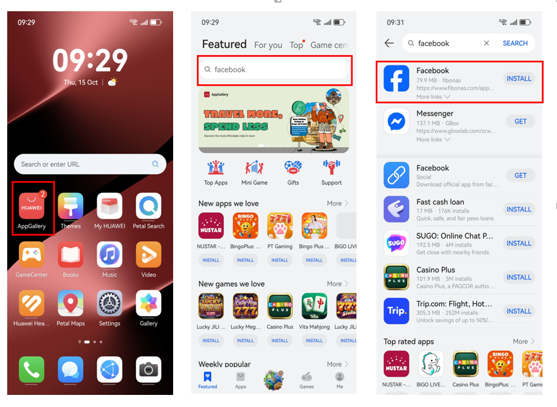
AppGallery is the official app store from Huawei, and it is pre-installed on every Huawei smartphone. The recommended routine is short: go to Huawei AppGallery, search Facebook, click Install, and log in to your account. Opening the store is as simple as tapping its icon on the home screen, typing “Facebook” into the search bar at the top, and jumping to the app’s landing page from the result. In some devices and regions the direct listing is available and installation proceeds straight away; where it is not, the flow simply adds one more component, described below.
The Role GBox Plays
Apps like Facebook can work seamlessly on Huawei handsets with the help of GBox, a compatibility solution available via AppGallery. GBox has undergone extensive testing, rigorous security audits, and verification, so installing and using it is completely secure. Installing Facebook will take you to a page where you can download GBox; the download starts after you tap the “Install” button when asked. Once completed, GBox works in the background to support Facebook and other apps requiring Google Services. Because it acts as a go-between — preventing incompatibilities and carrying apps that depend on Google components — you do not need to download extra software for every app separately. One setup covers the popular apps you already use.
See also: How Family Dentistry Combines Comfort With Smile Design Services
First Launch and Sign-In
After installation, the icons for Facebook and GBox appear on the home screen. Tap the Facebook icon to open the app for the first time; signing in to your account is required upon opening it. Once logged in, every function works without a hitch — scrolling the News Feed, checking in on Groups, messaging friends through Messenger, and tapping into Reels. The phone’s large memory capacity and smooth performance make managing and uploading videos easy as well, which is worth remembering if you create content for a page or a business.
Permissions, Notifications, and Updates
A few checks inside Settings keep the app behaving the way it should. To enable all permissions: from Settings, go to Apps & services, tap Apps, search Facebook from the search bar, select Facebook, and allow all permissions. To fix delayed notifications: go to Settings, open Notifications & status bar, search Facebook, and allow notifications. To update the app: go to Huawei AppGallery, click Me, then App updates, where Facebook can be updated manually or together with all other apps — a prompt will show, and you can check “Don’t ask again” and select UPDATE. These paths come directly from the troubleshooting section of the same huawei philippines facebook guide, so they can be followed exactly as written.
A Habit Worth Keeping
When you want a new app in the future, always check AppGallery first — it is the safest and fastest way to get apps on your Huawei device, with no extra steps needed. If questions come up along the way, the HUAWEI Community hosts step-by-step video tutorials and Huawei customer support is easy to reach. The same combination of AppGallery, GBox, and community guidance that brings huawei philippines facebook to your handset will work for the rest of your apps too, which is what makes the setup worth learning once and reusing every time.